
Smart Focus
Step-by-step setup guide
Smart Focus determines which Focus mode should be active based on your schedule, calendar events, working days and public holidays.
Important: iOS does not allow third-party apps to change the active Focus mode directly. Smart Focus determines the appropriate mode and passes its name to the Shortcuts app, which performs the change.
Configure Smart Focus
Start by giving Smart Focus the permissions it needs and defining how your Focus modes should be selected.
First opening
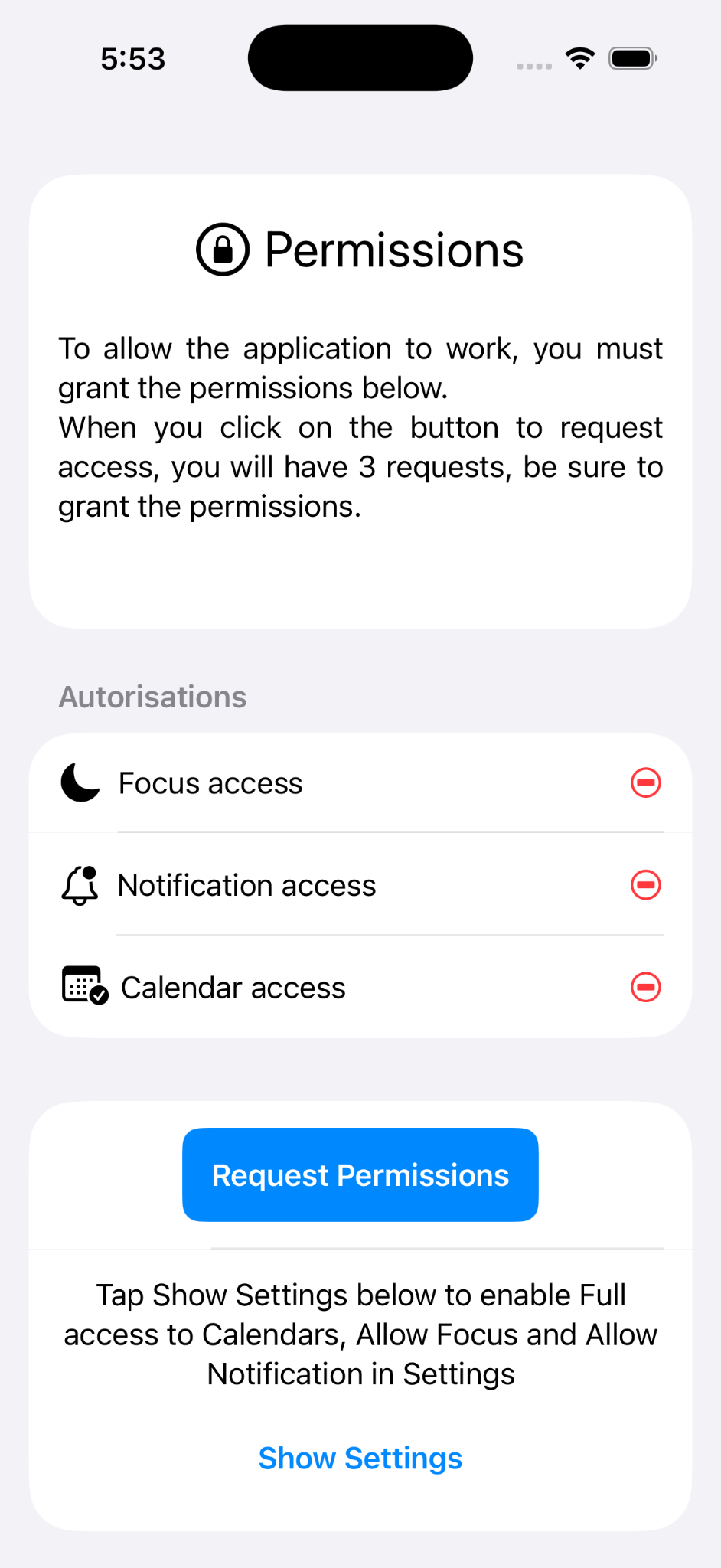
When Smart Focus opens for the first time, tap Request Permissions.
iOS will then ask you to grant the permissions required by the app.
Grant permissions
Focus
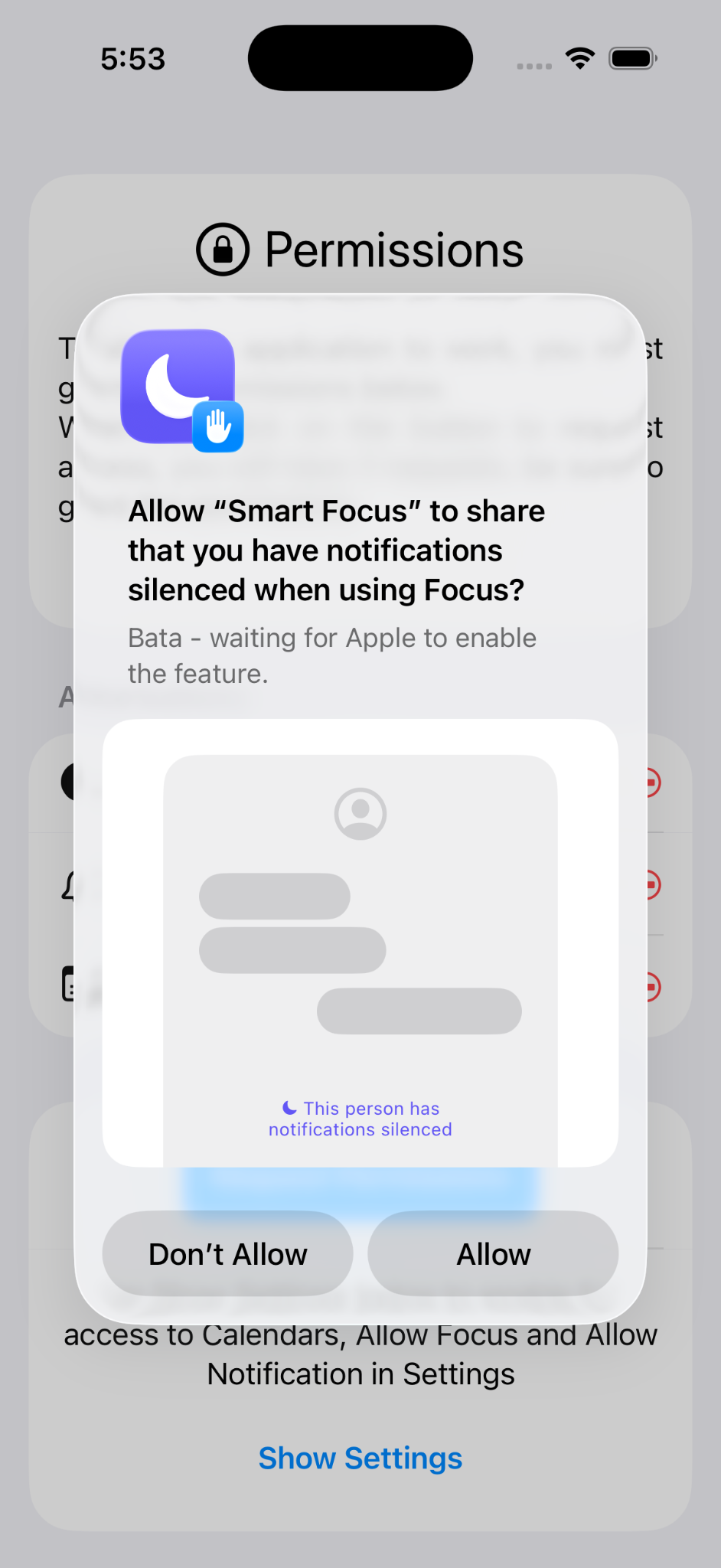
Tap Allow when iOS asks for Focus access.
Notifications
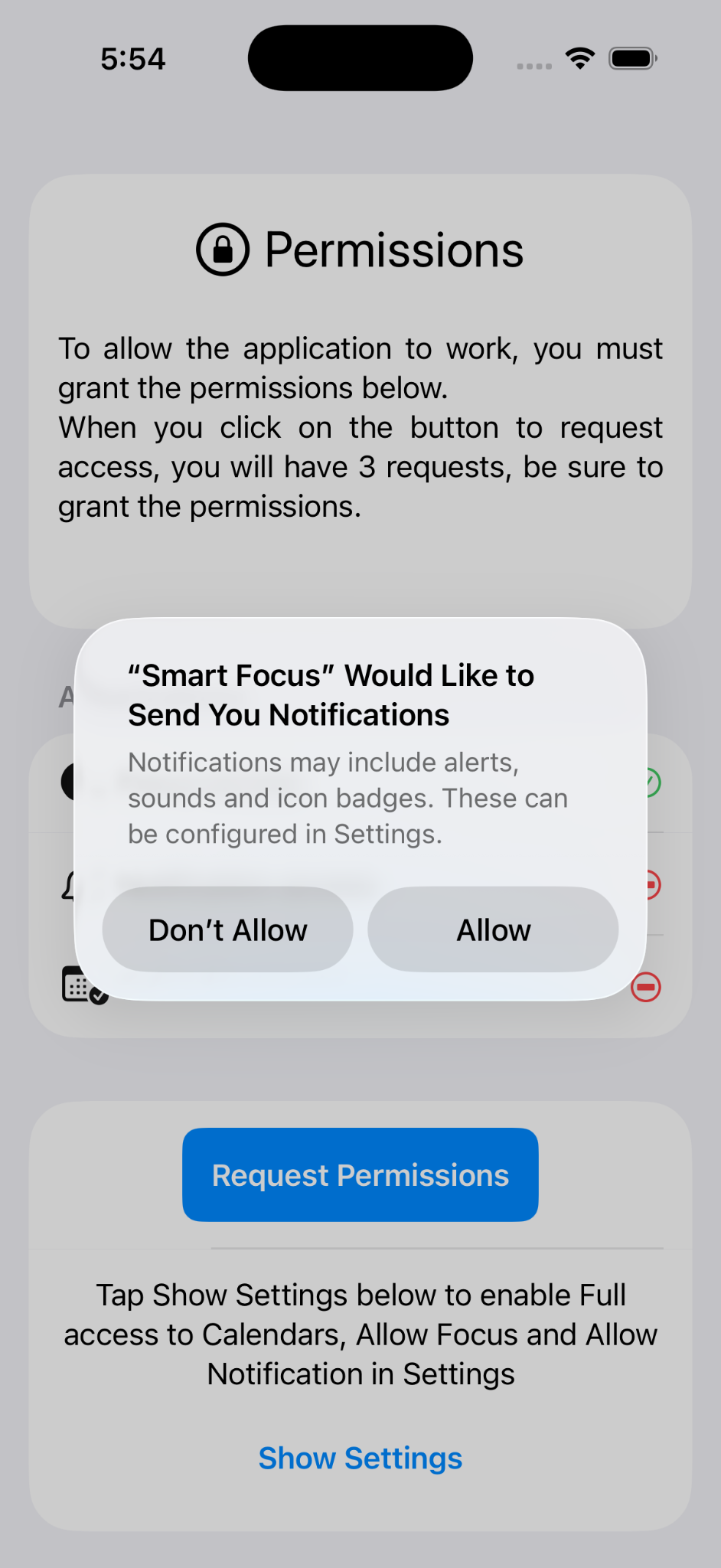
Tap Allow if you want Smart Focus notifications.
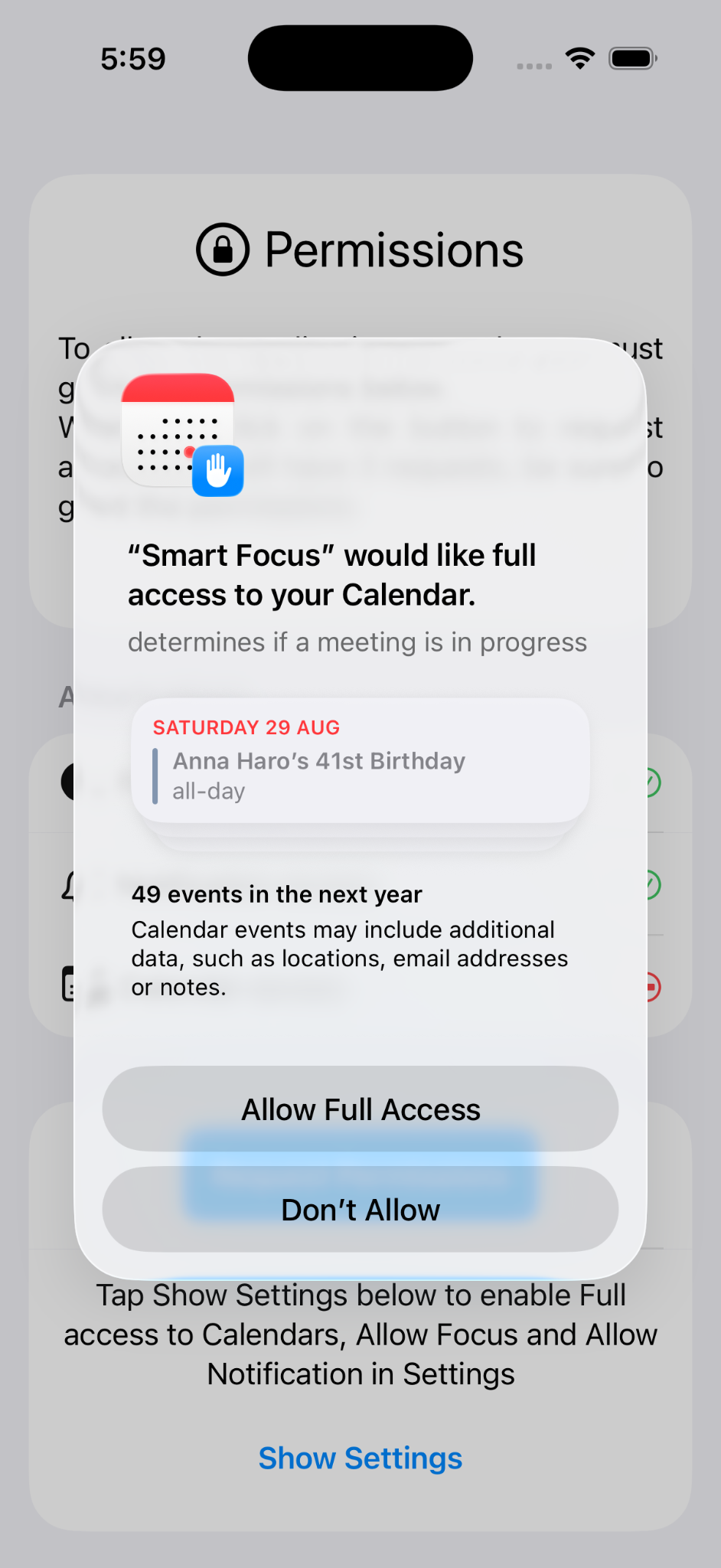
Calendar
Select Allow Full Access so Smart Focus can evaluate your calendar events.
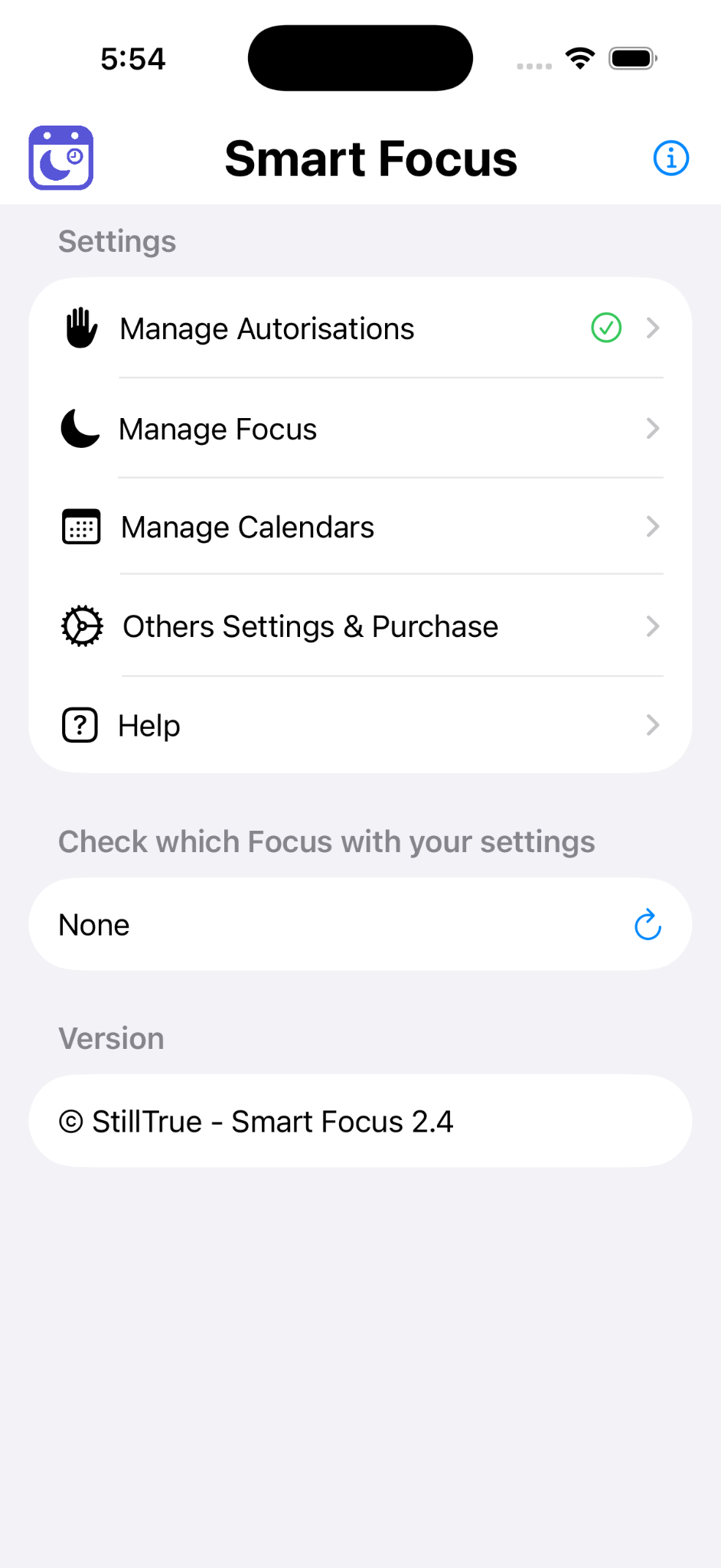
Set up your Focus modes
From the main screen, tap Manage Focus.
Add the Focus modes that Smart Focus should use.
Focus mode names must exactly match the names configured in iPhone Settings, including spelling, spaces and capitalization.
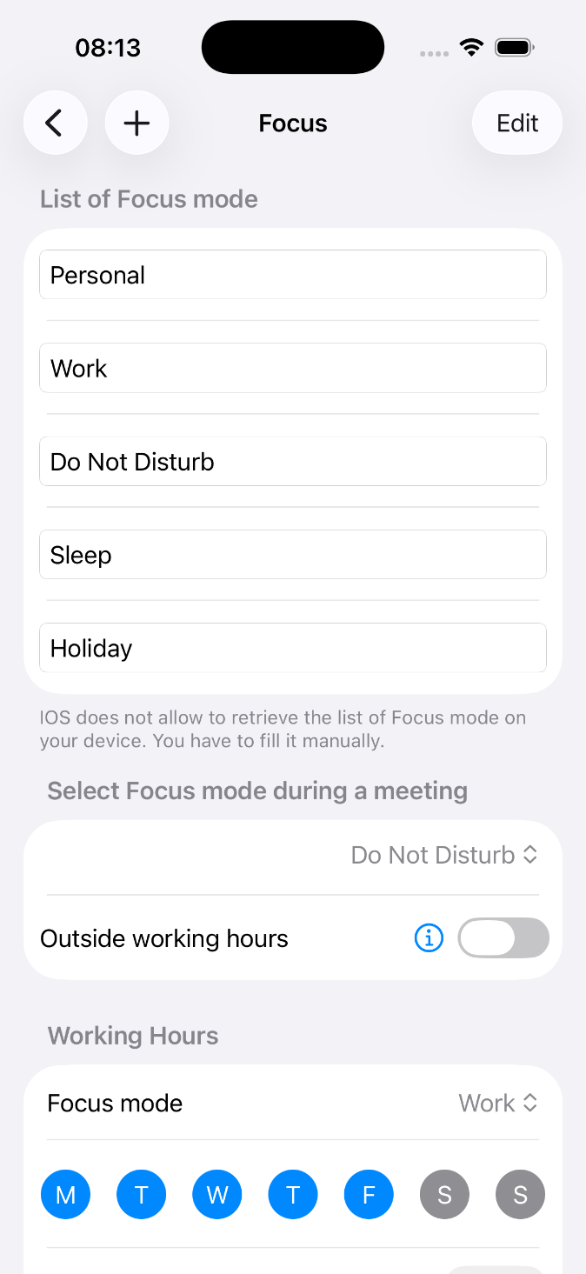
Add your Focus modes
Enter each Focus mode you want Smart Focus to use.
For example:
- Do Not Disturb
- Work
- Personal
- Holiday
- Sleep
When you are finished, tap Back.
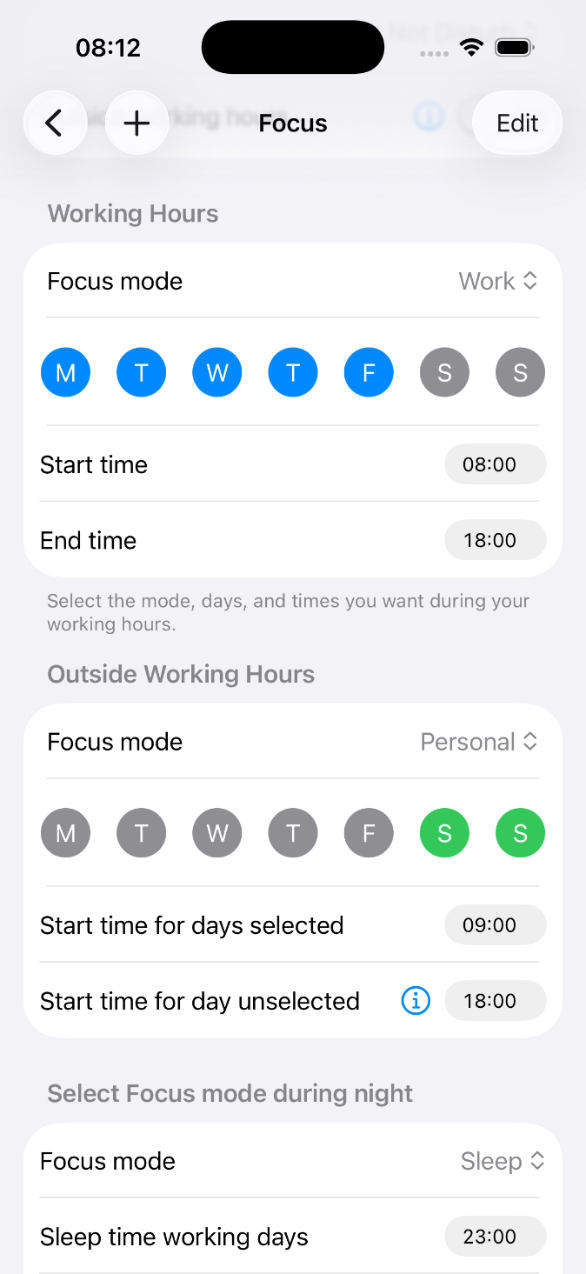
Days & Times
Define which Focus mode should be used according to your working schedule.
- Focus mode used during meetings;
- working-day Focus and working hours;
- Focus used outside working hours;
- different schedules for non-working days;
- night-time Focus;
- Focus used on public holidays.
On working days, use Work from 8:00 AM to 6:00 PM, Personal from 6:00 PM to 11:00 PM, and Sleep after 11:00 PM.
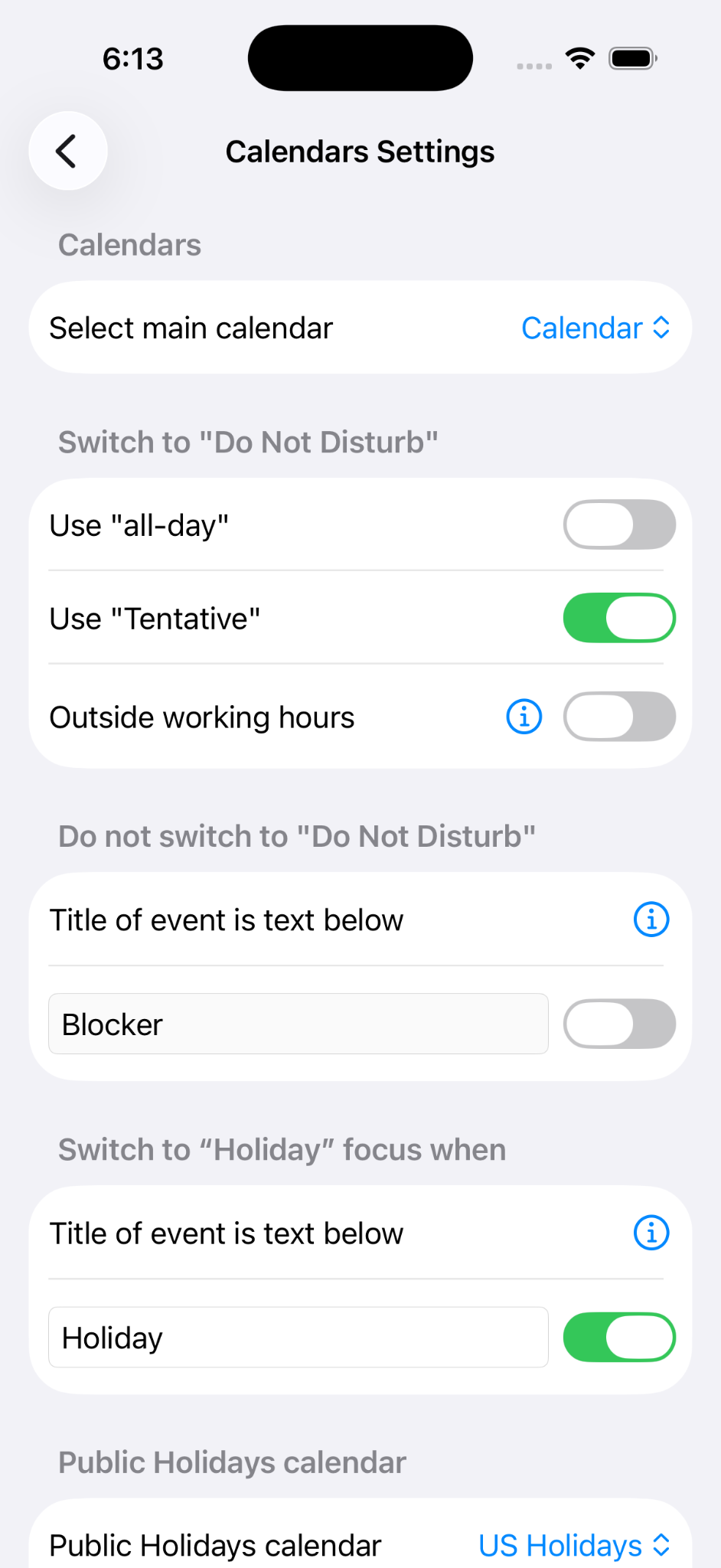
Calendar settings
Select the calendar Smart Focus should use to detect meetings and other events.
You can also choose how Smart Focus handles:
- all-day events;
- tentative events;
- events containing specific words;
- events that should trigger Holiday Focus;
- a dedicated public-holidays calendar.
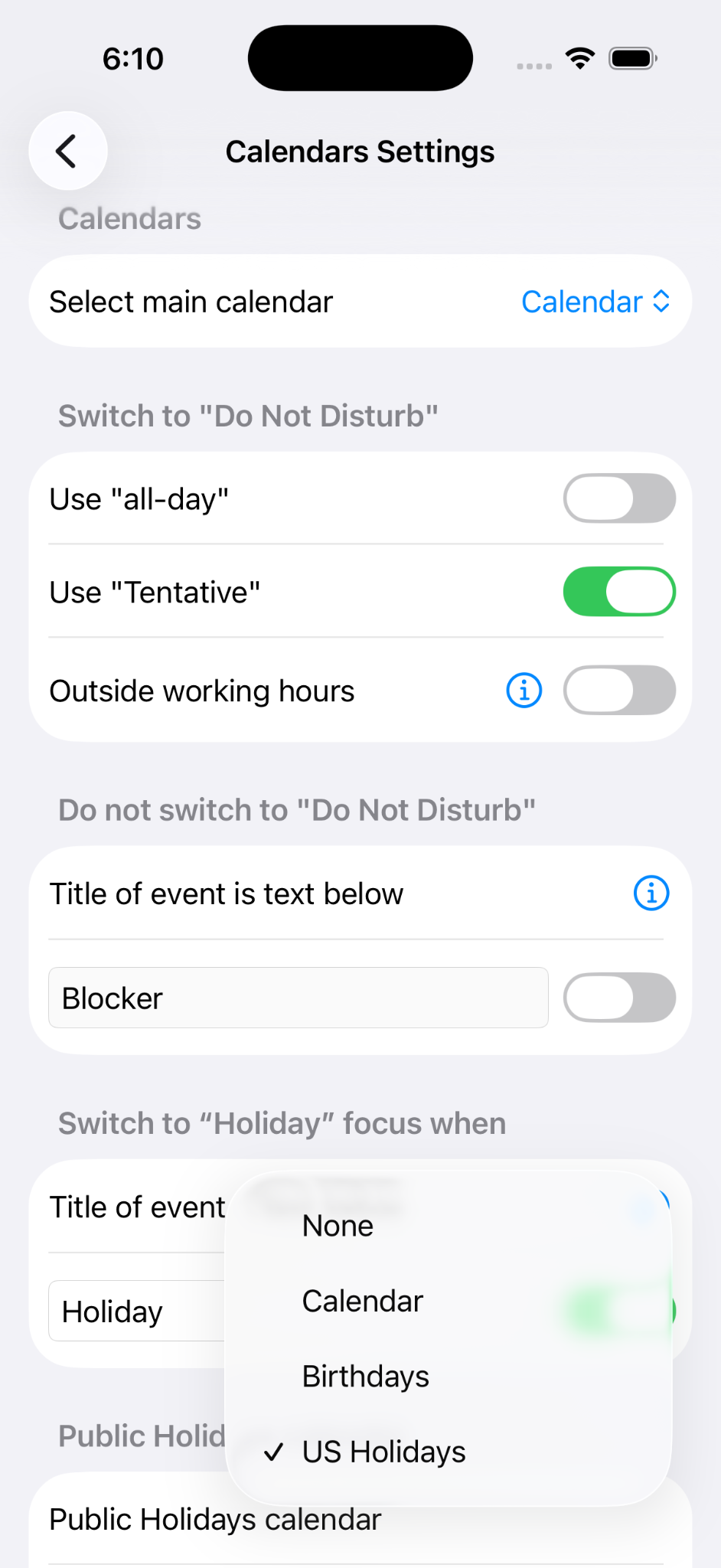
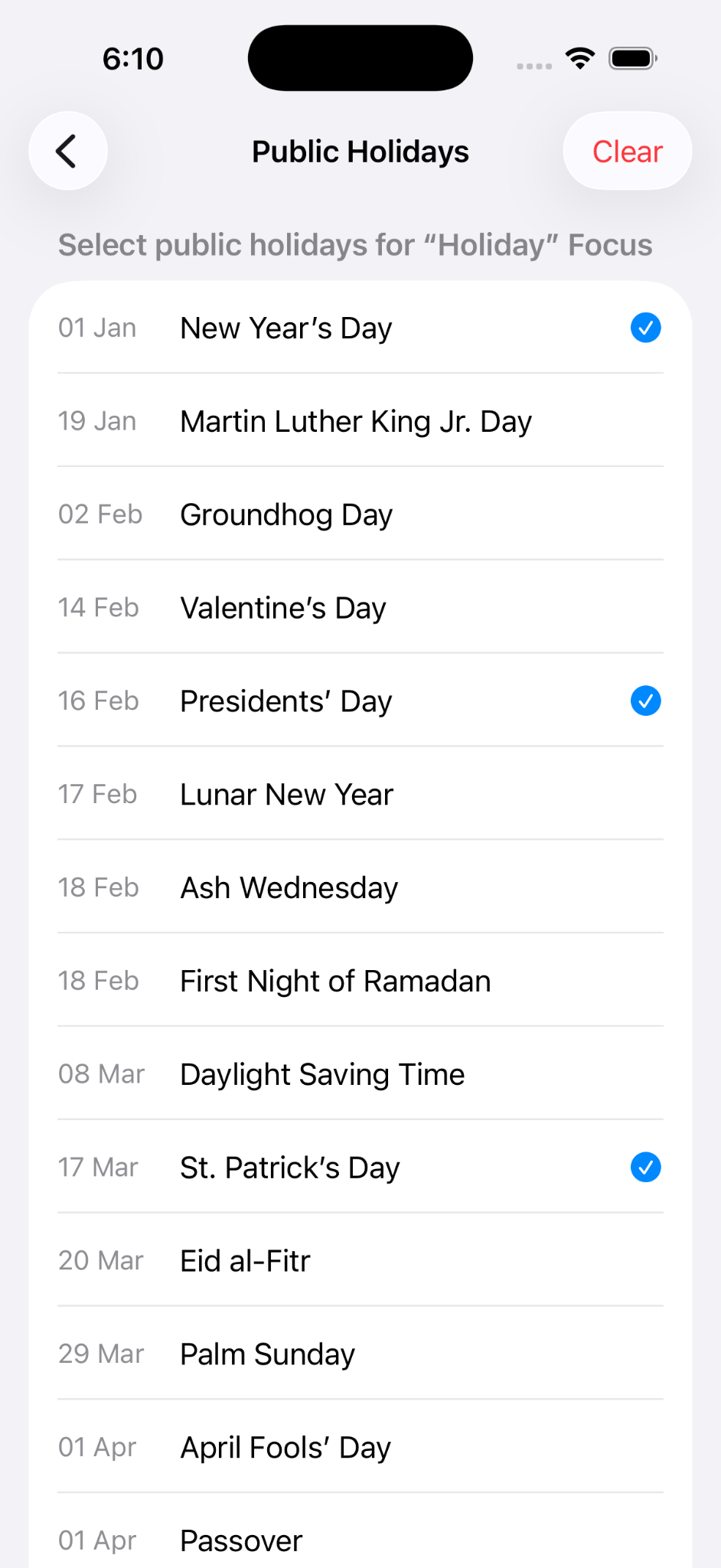
Choose your public holidays
If you selected a public-holidays calendar, tap Select public holidays.
Select the days on which you want Smart Focus to use your Holiday Focus mode.
You can return to this list at any time if your calendar changes.
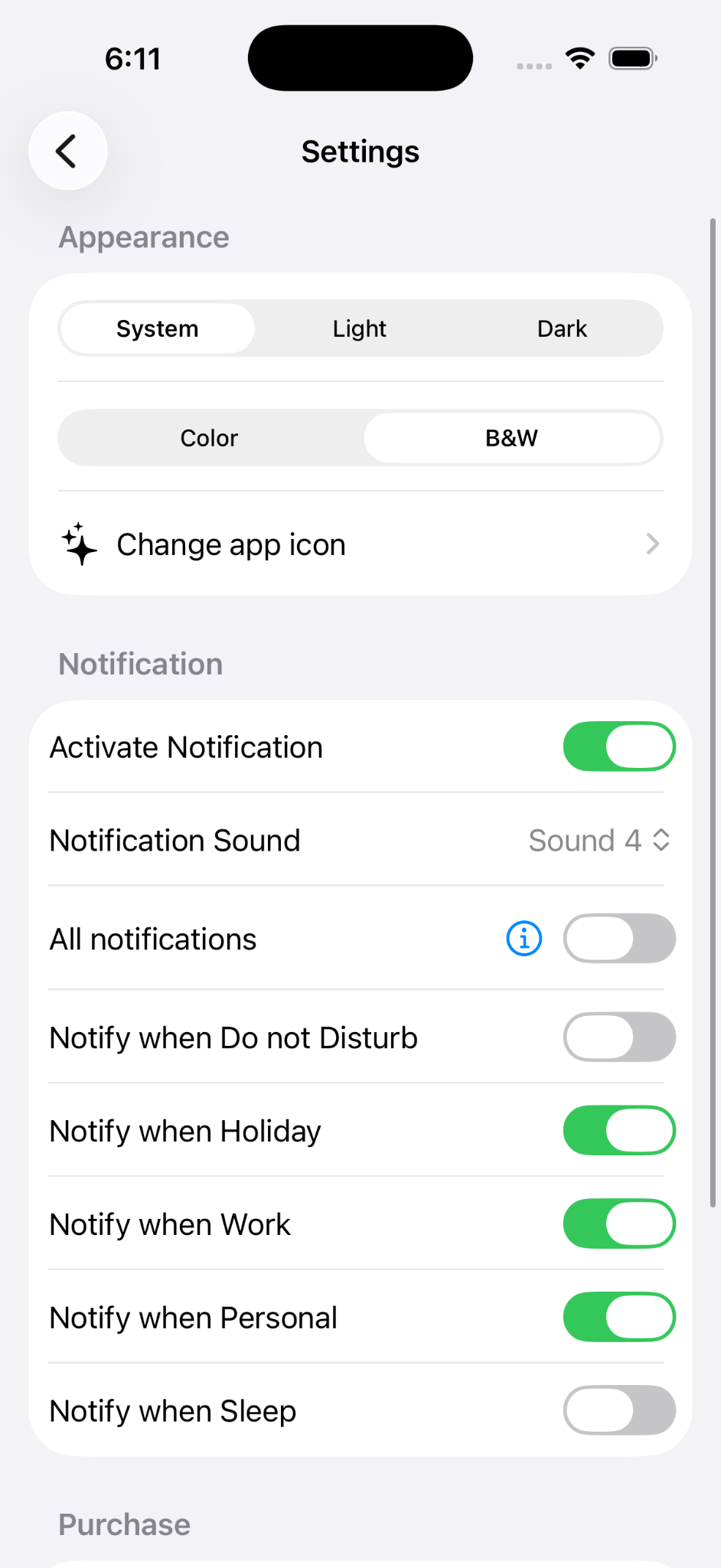
Notifications and appearance
Open System to customize Smart Focus.
You can choose:
- the application appearance;
- which notifications you want to receive;
- whether every execution should generate a notification.
Enabling all notifications means that Smart Focus can notify you every time the shortcut is executed.
Install the Smart Focus Shortcut
The Shortcut receives the Focus mode selected by Smart Focus and applies it on your iPhone.
Install the ready-to-use Shortcut
The template is already configured for the standard Focus modes used by Smart Focus.
You can rename the Focus modes in the Shortcut if your iPhone uses different names.
Advanced — Create the Shortcut manually
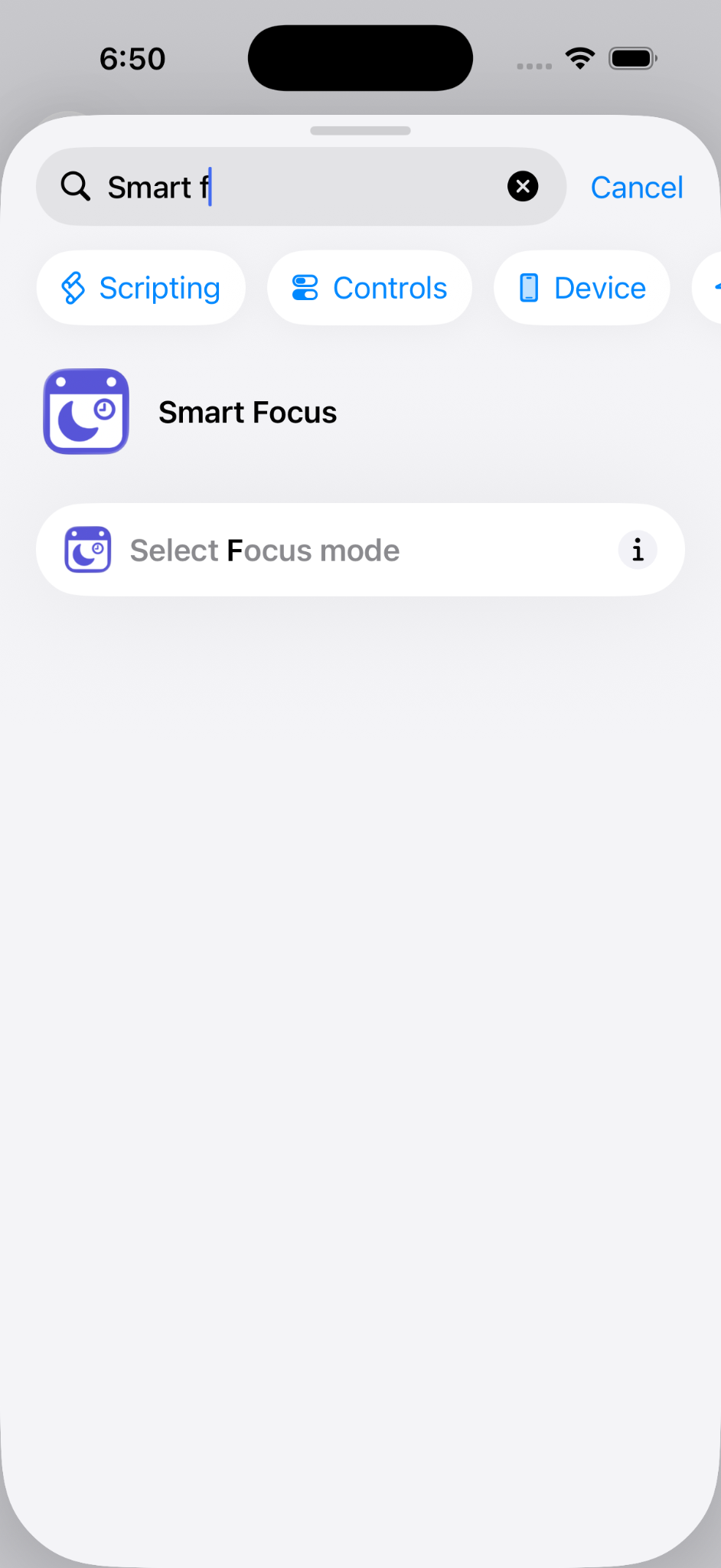
Create a new Shortcut
- Open the Shortcuts app.
- Create a new Shortcut.
- Search for Smart Focus.
- Select Select Focus mode.
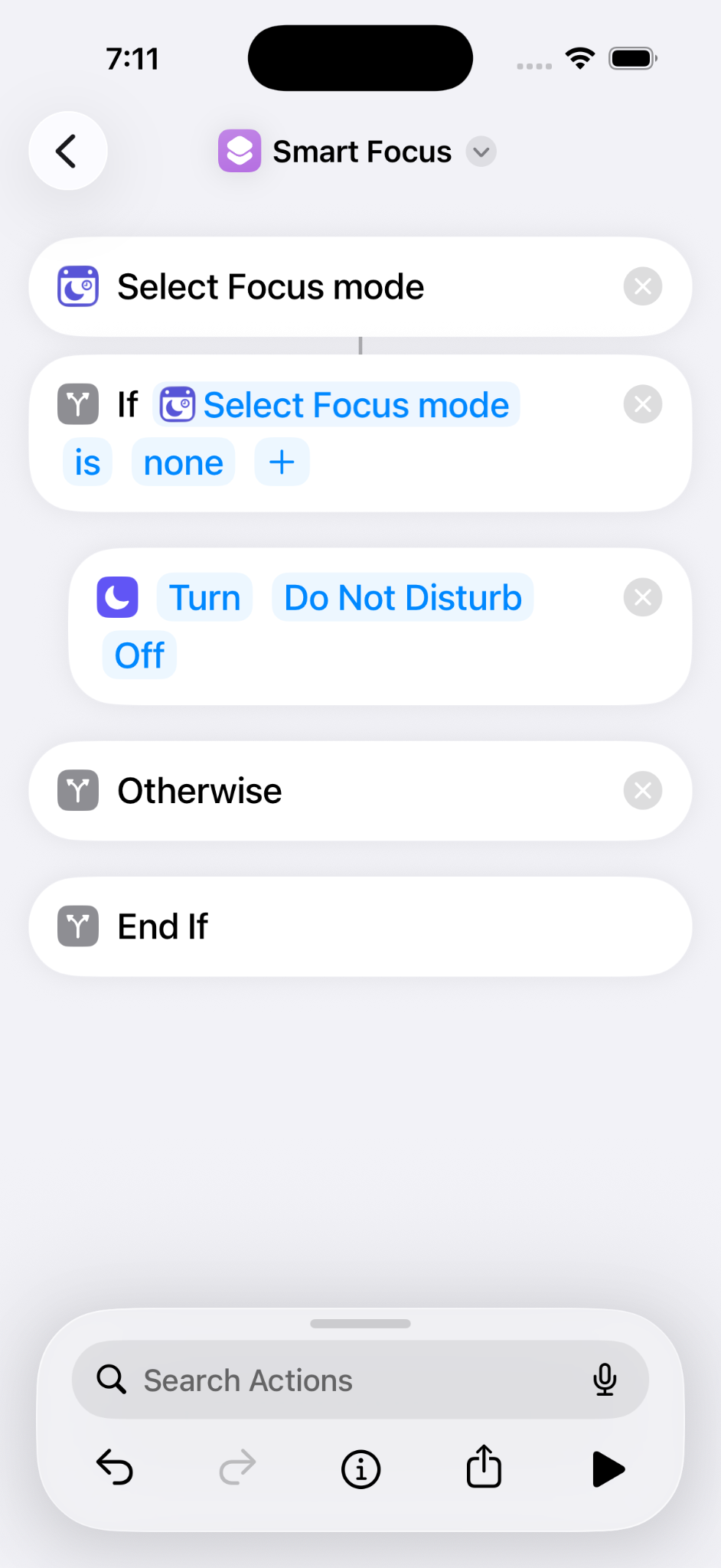
Add the Focus logic
- Add an If action.
- Use the result of Select Focus mode as the condition.
- Add the appropriate Set Focus action.
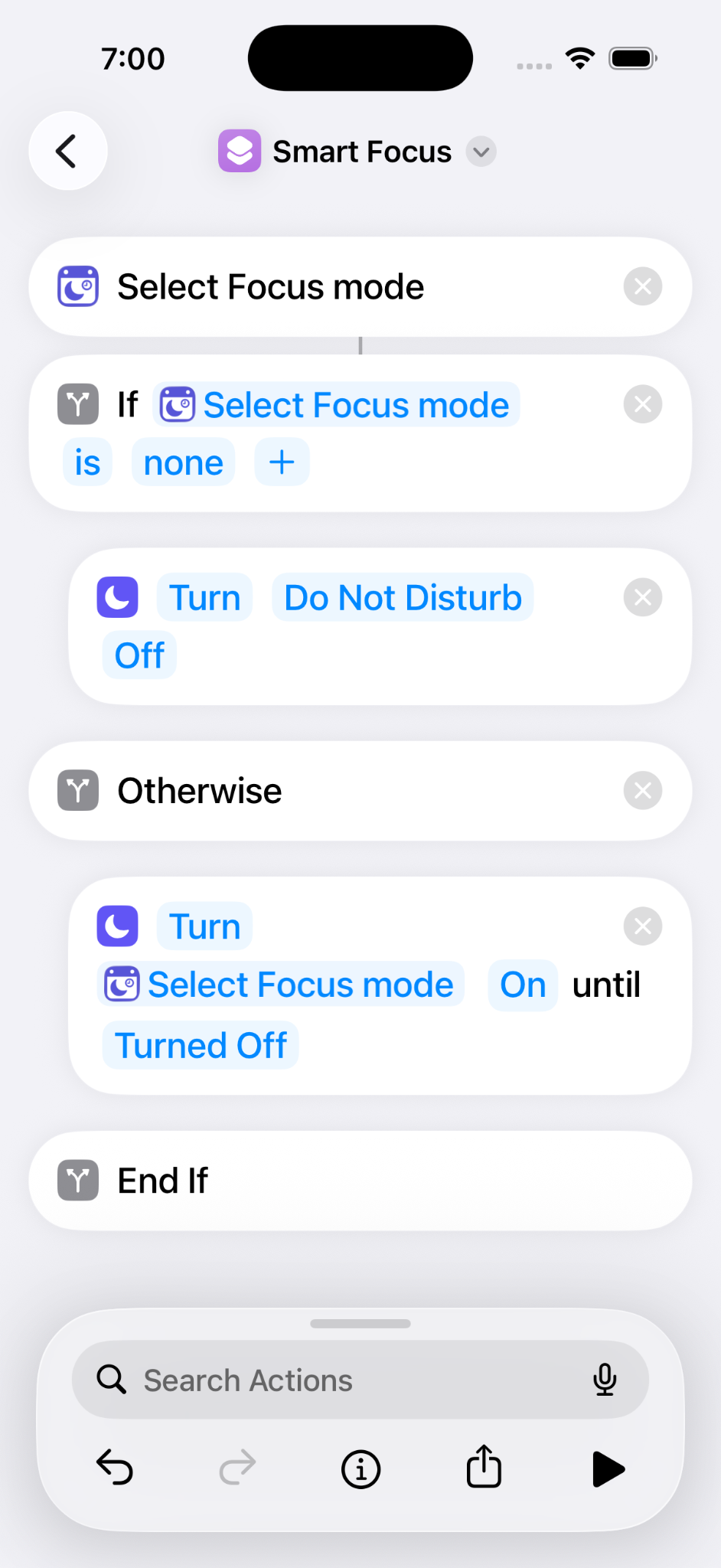
Complete the Shortcut
In the Otherwise branch, add another Set Focus action and use the Focus name returned by Smart Focus.
Your Shortcut is now ready to be automated.
Create the automation
The final step is to make iOS run the Smart Focus Shortcut automatically.
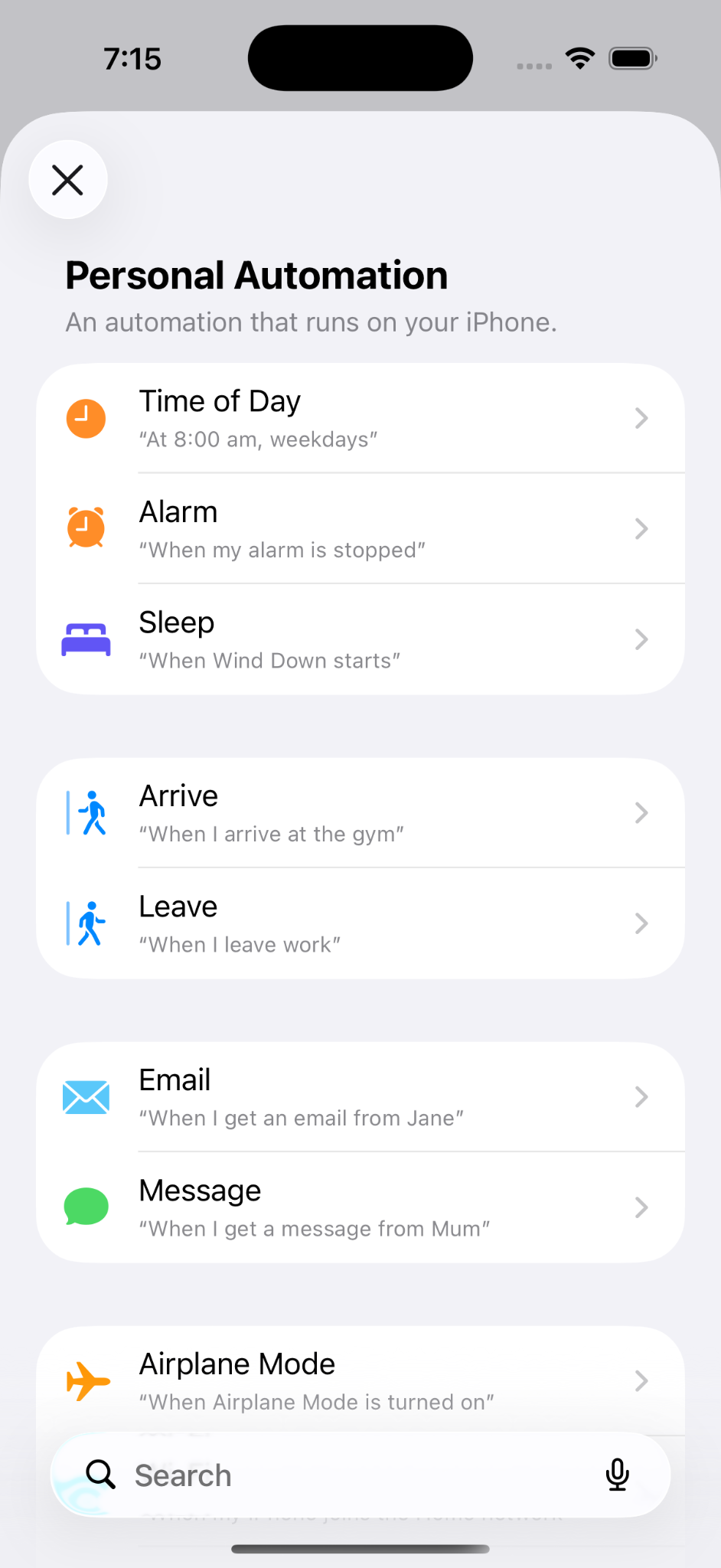
Create a Time of Day automation
- Open the Shortcuts app.
- Open Automation.
- Create a new automation.
- Select Time of Day.
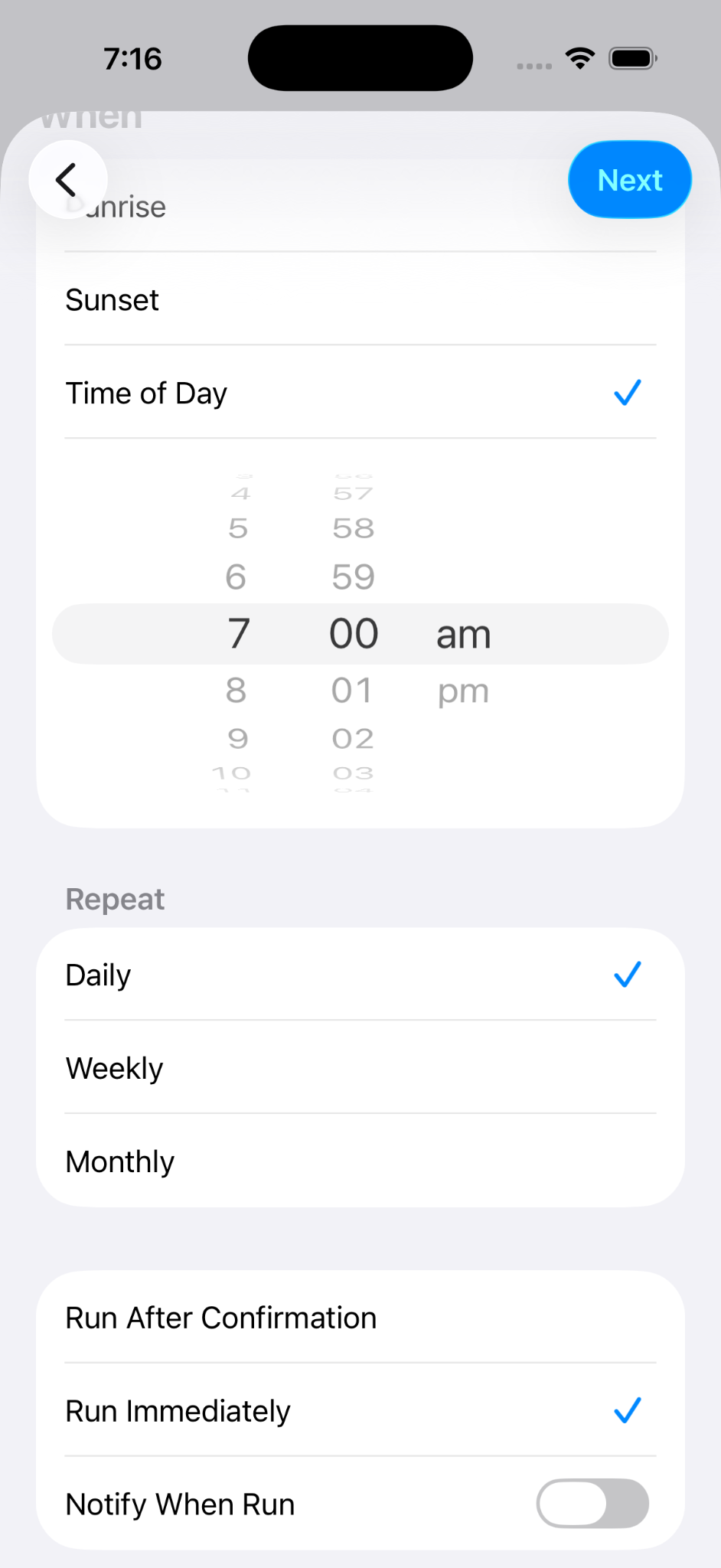
Choose when it should run
Select the desired time and configure the automation to repeat daily.
Select Run Immediately so no manual confirmation is required.
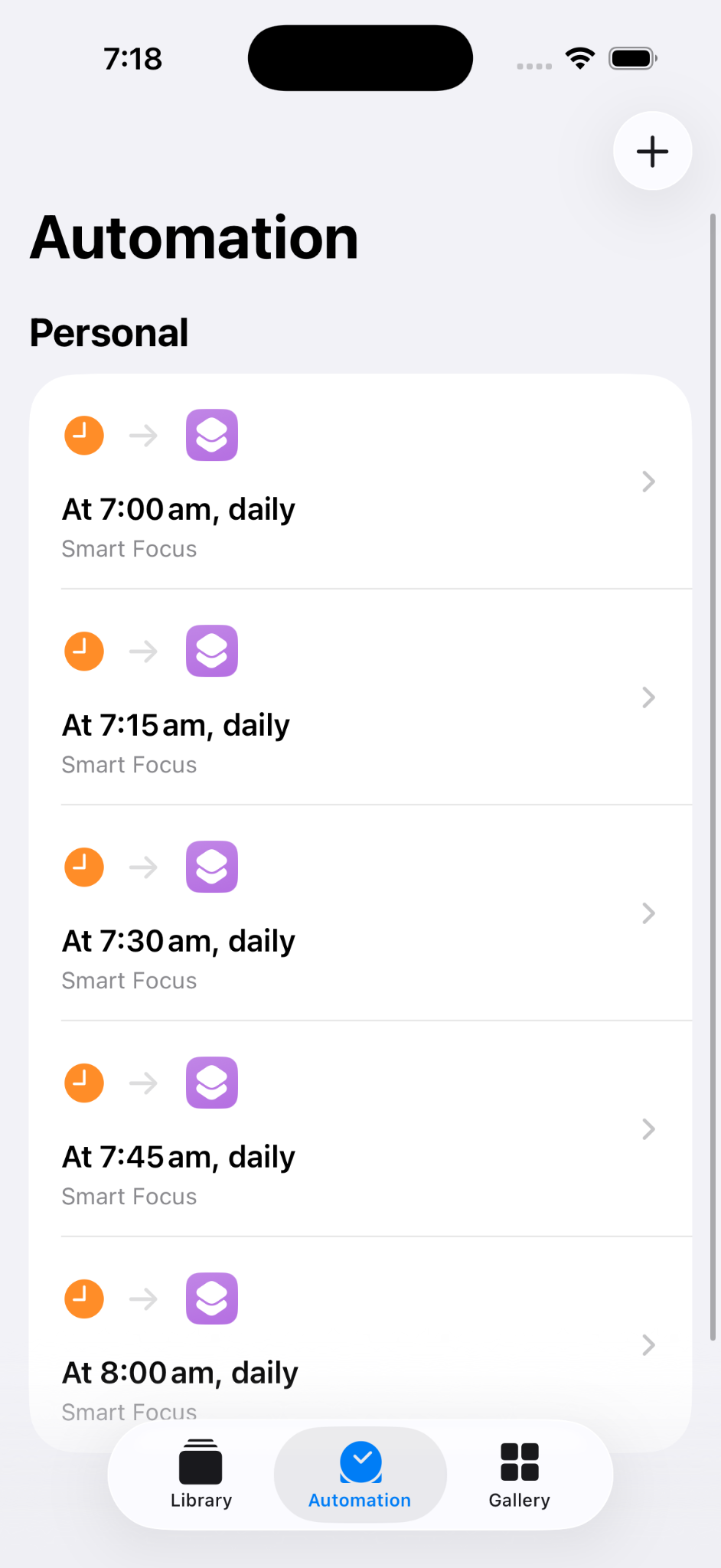
If you want Smart Focus to evaluate your situation several times during the day, create additional Time of Day automations for each desired execution time.
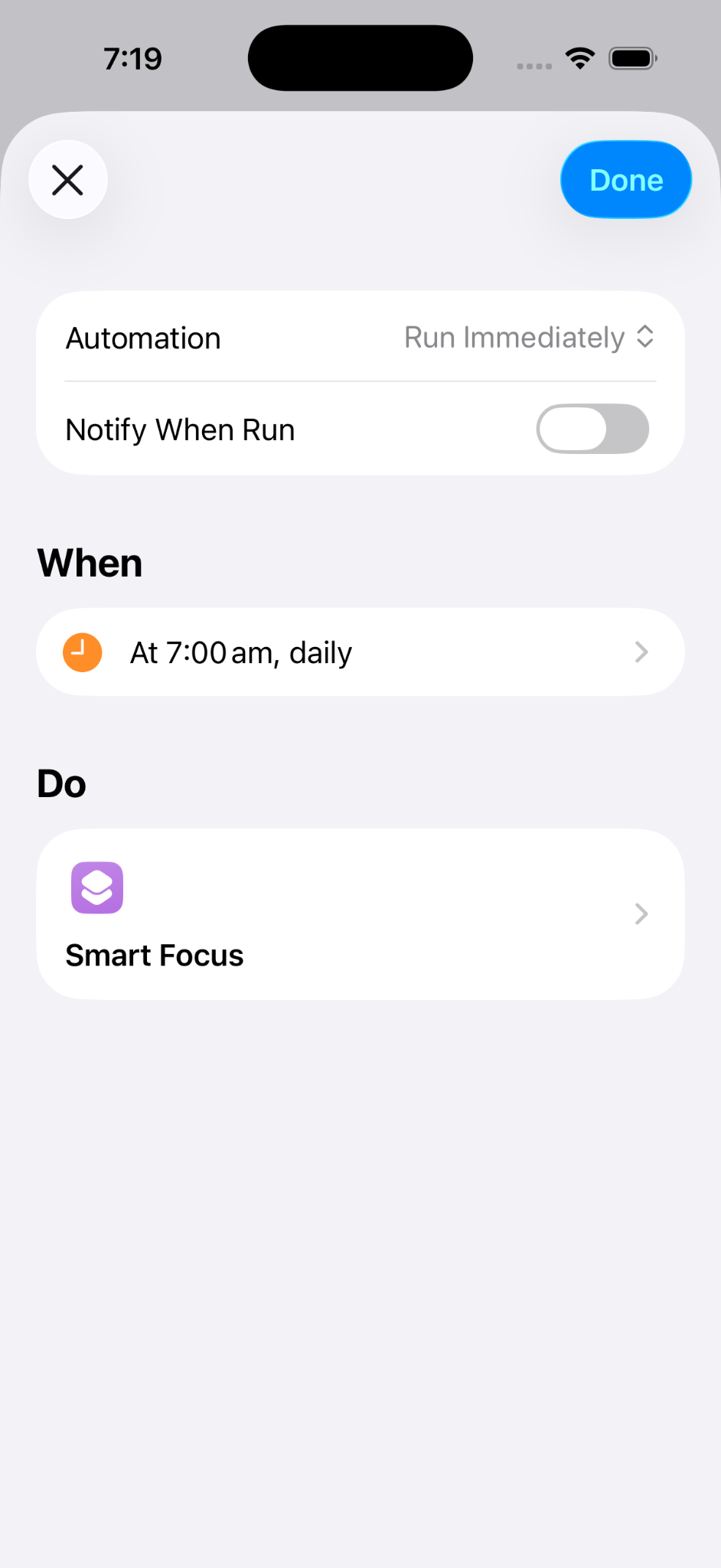
Select your Smart Focus Shortcut
Select the Shortcut you installed or created in the previous step.
Repeat the process for every time at which you want Smart Focus to run.
You're all set!
Smart Focus can now determine the appropriate Focus mode according to your schedule, calendar events, working days and public holidays.
Your iOS automations will regularly run the Shortcut and apply the selected Focus mode.
Next steps
Learn more about Smart Focus and how it makes your iPhone Focus modes smarter.
You can also follow our recommended Focus mode setup for Personal, Holiday, Work, Do Not Disturb and Sleep.