
Set up your Focus modes
Recommended iOS Focus configurations for Smart Focus
Take a few minutes to configure your iPhone Focus modes so Smart Focus can give you the behaviour you expect.
The examples below are recommendations only. You can adapt notifications, people, apps, wallpapers and Focus filters to match your own needs.
If Smart Focus manages when these Focus modes are activated, avoid configuring schedules or Smart Activation for the same modes in iOS. This prevents iOS and Smart Focus from competing with each other.
Personal
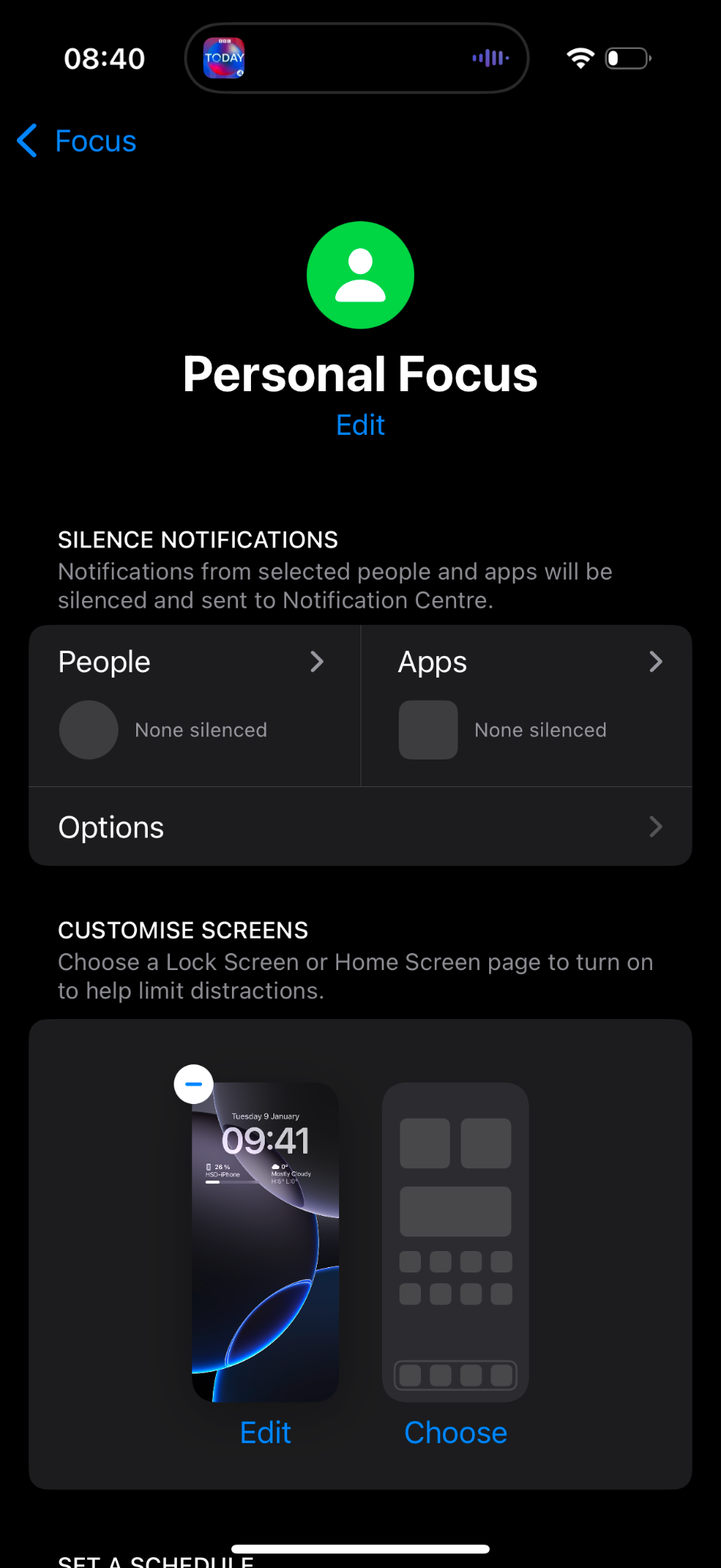
Personal can be your normal Focus mode outside working hours, allowing most notifications while applying a few personal preferences.
Recommended configuration
- No specific restrictions for people or apps, unless you want them.
- Choose a dedicated Lock Screen and Home Screen so you can immediately recognize the active Focus.
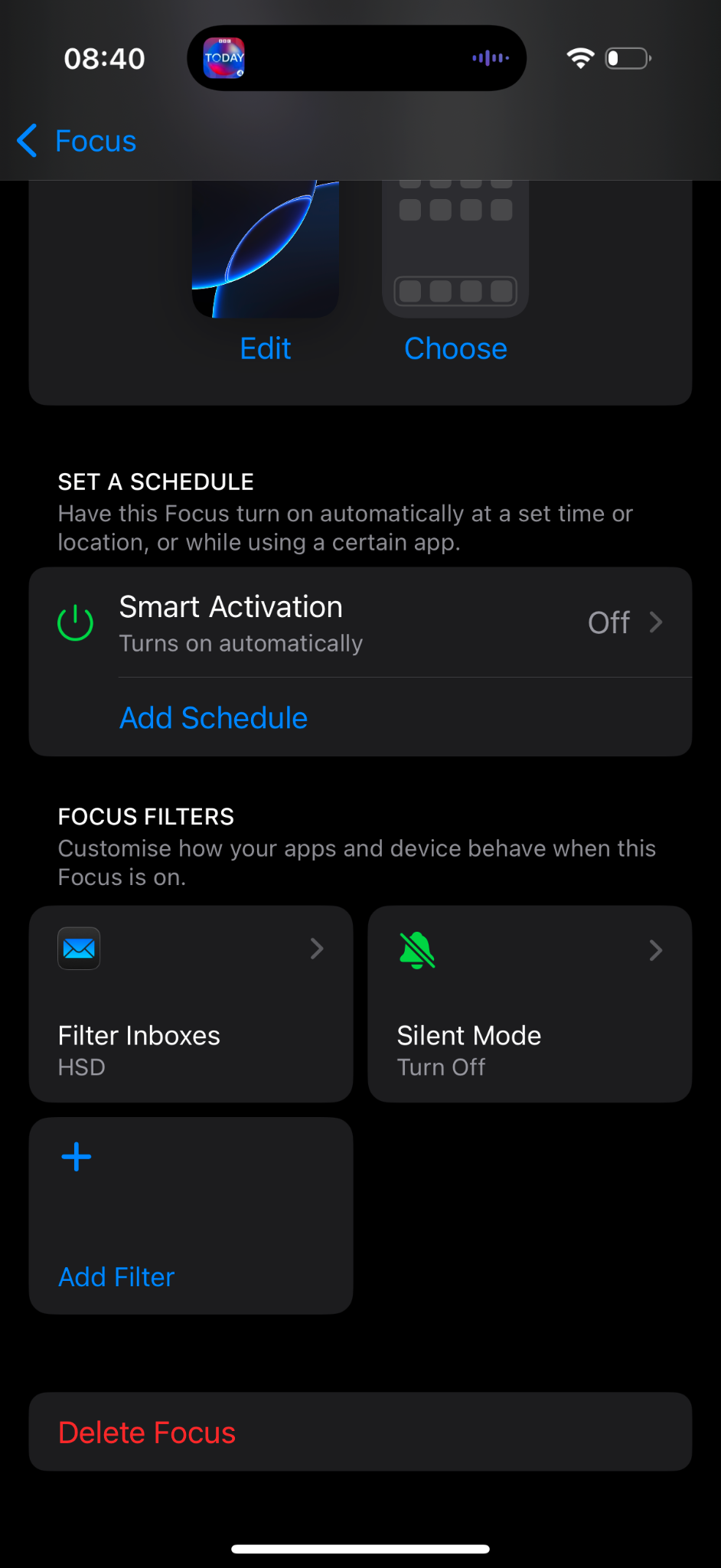
- Disable Smart Activation.
- Do not configure an iOS schedule.
- Optionally filter your work mailbox so professional notifications are hidden.
- Set the Silent Mode filter to Off if you want normal audible alerts.
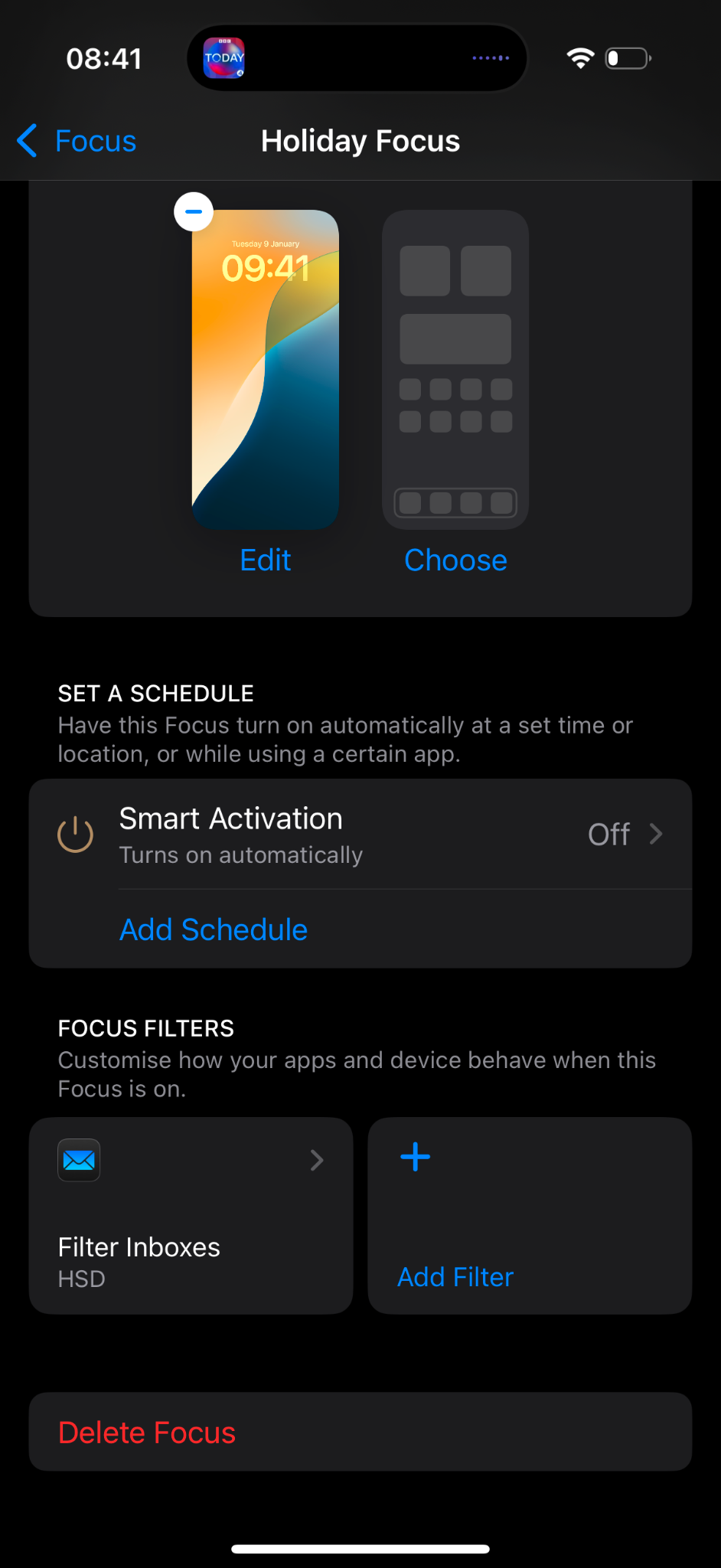
Holiday
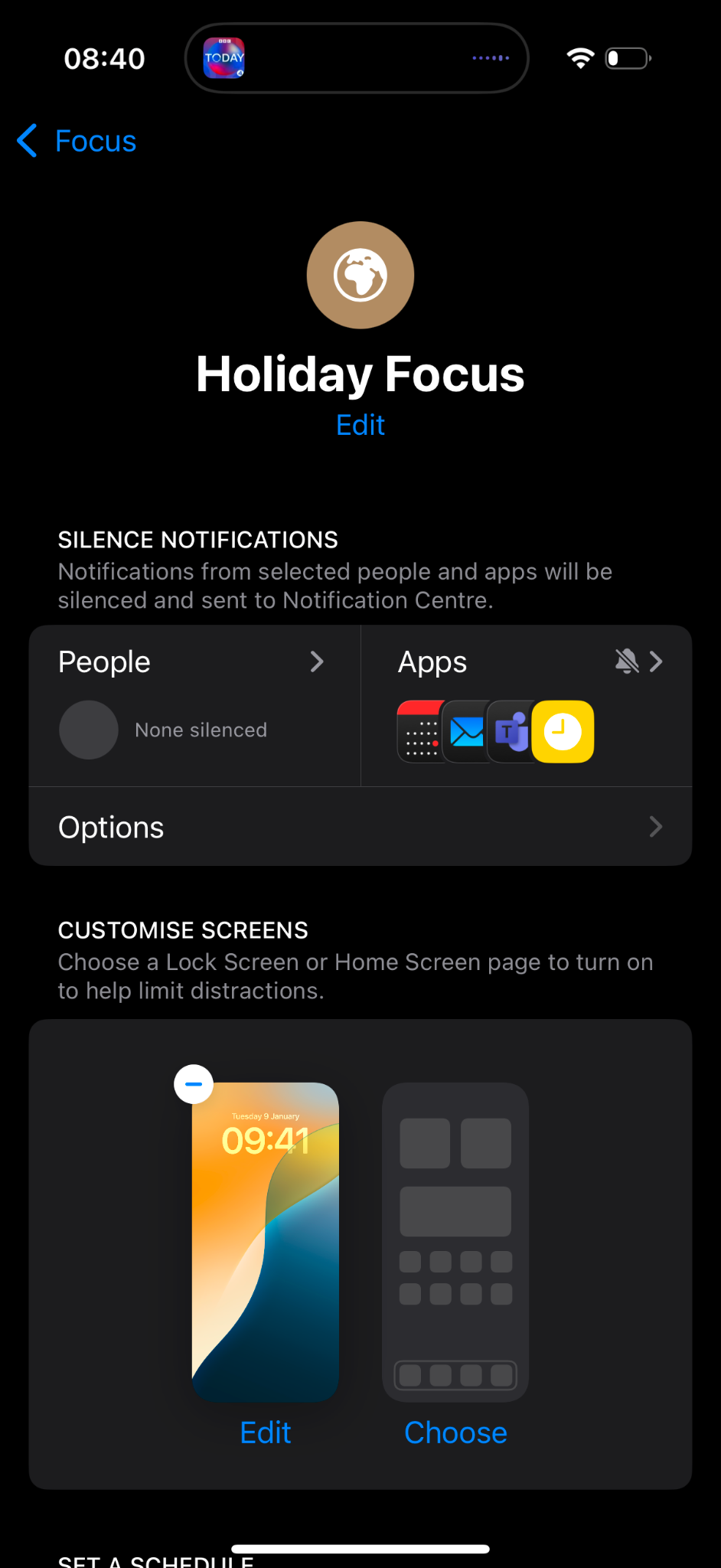
Holiday Focus is useful for reducing work-related interruptions while keeping your personal apps and contacts available.
Recommended configuration
- Silence work-related apps such as Calendar, Teams or other professional tools.
- Choose a dedicated wallpaper for Holiday Focus.
- Disable Smart Activation.
- Do not configure an iOS schedule.
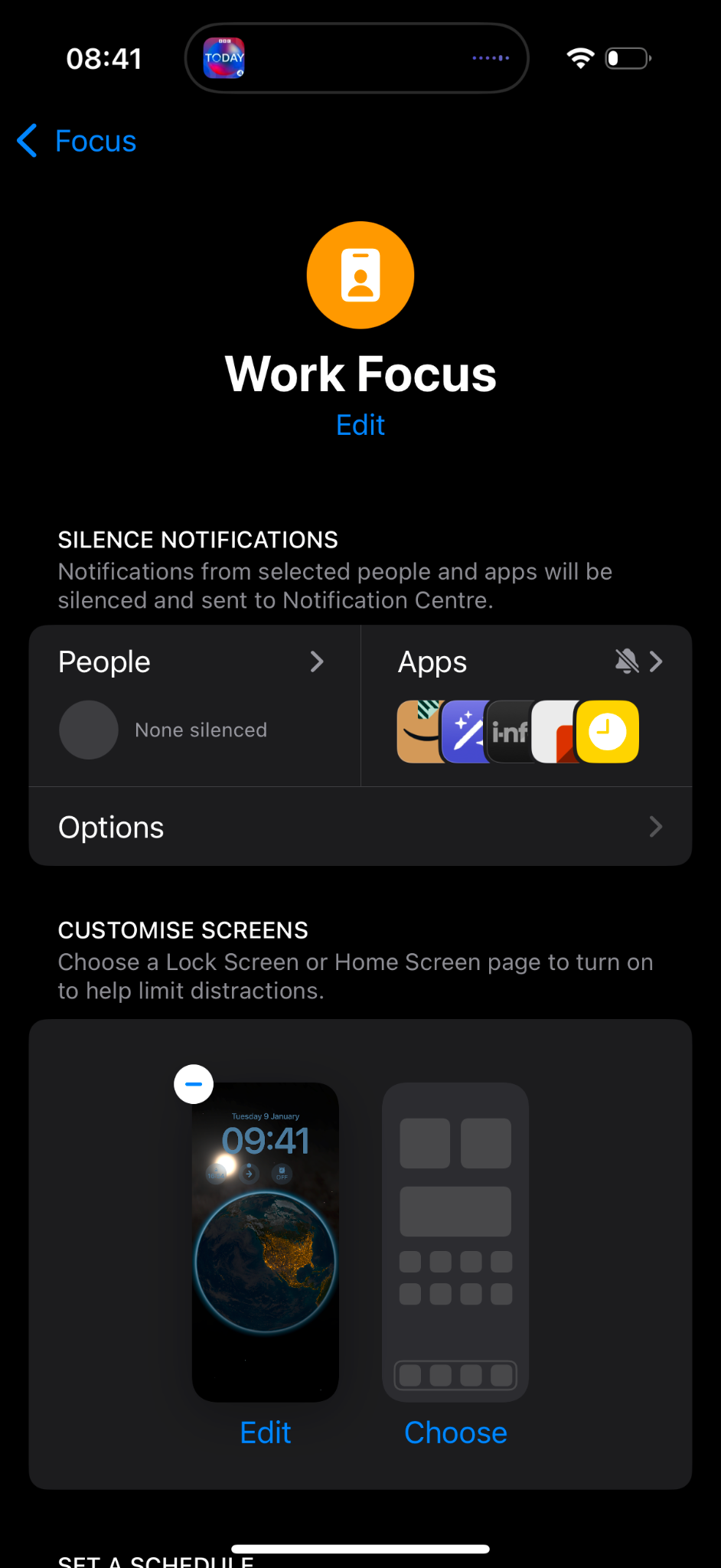
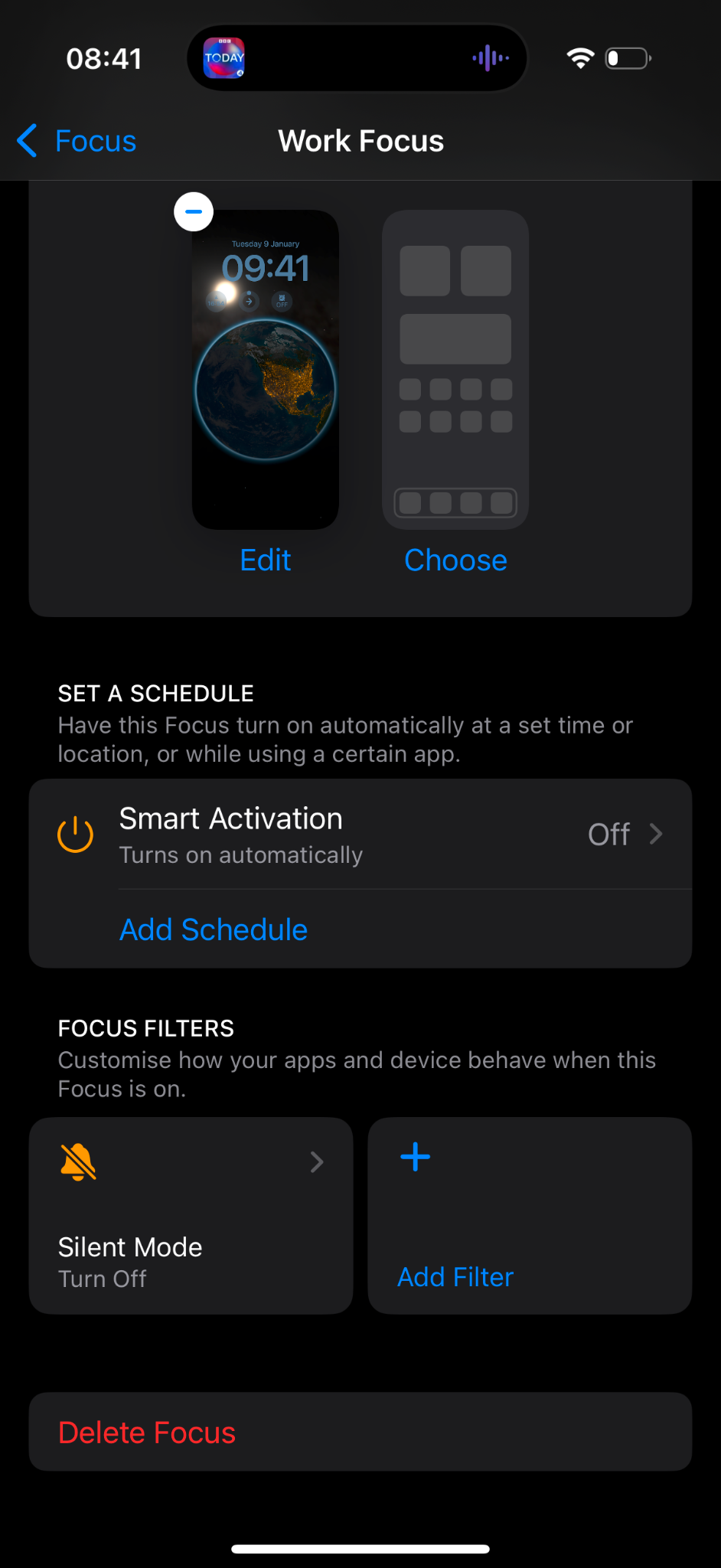
Work
Work Focus can reduce personal distractions while keeping your professional apps and communications available.
Recommended configuration
- Silence distracting personal apps such as games, shopping or entertainment apps.
- Choose a dedicated Work wallpaper.
- Disable Smart Activation.
- Do not configure an iOS schedule.
- Set the Silent Mode filter to Off if you want audible work notifications.
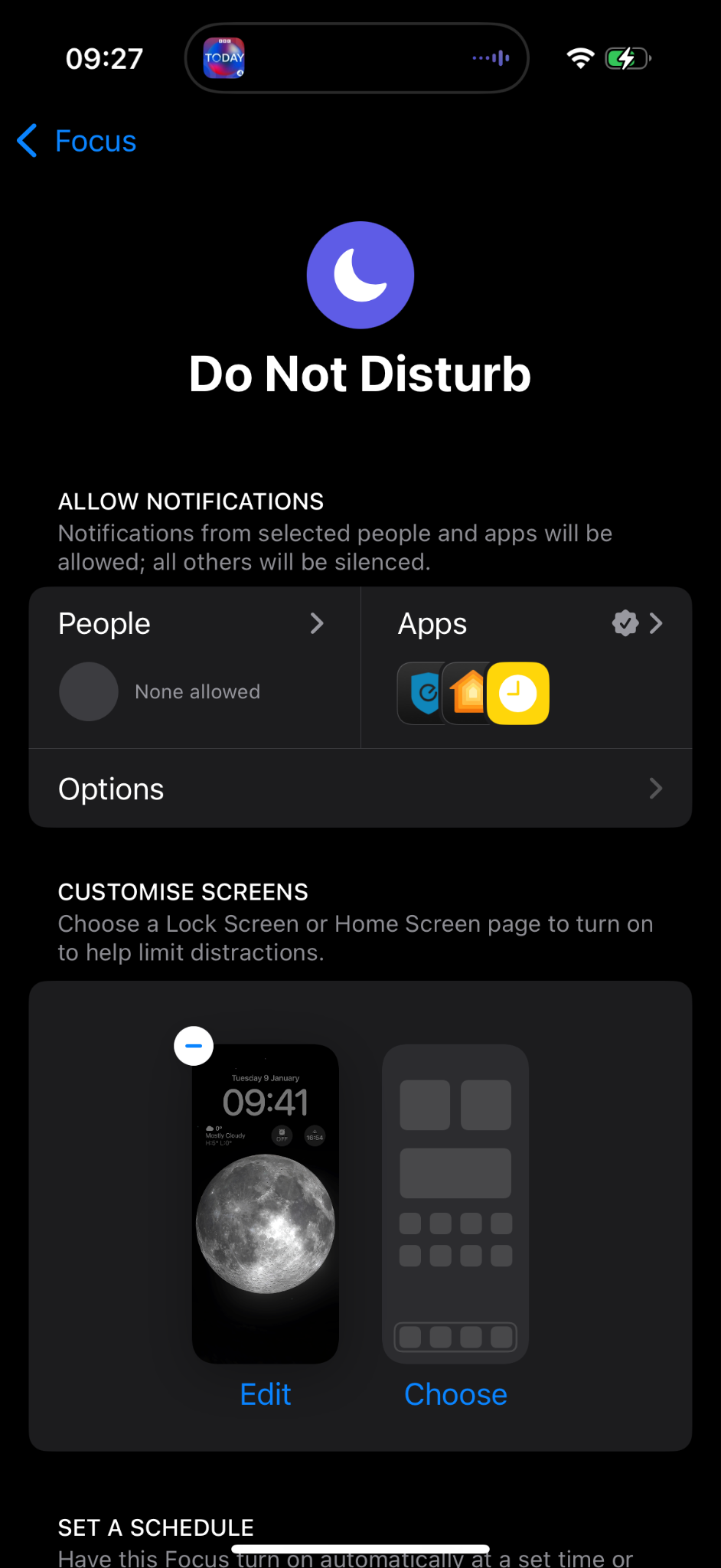
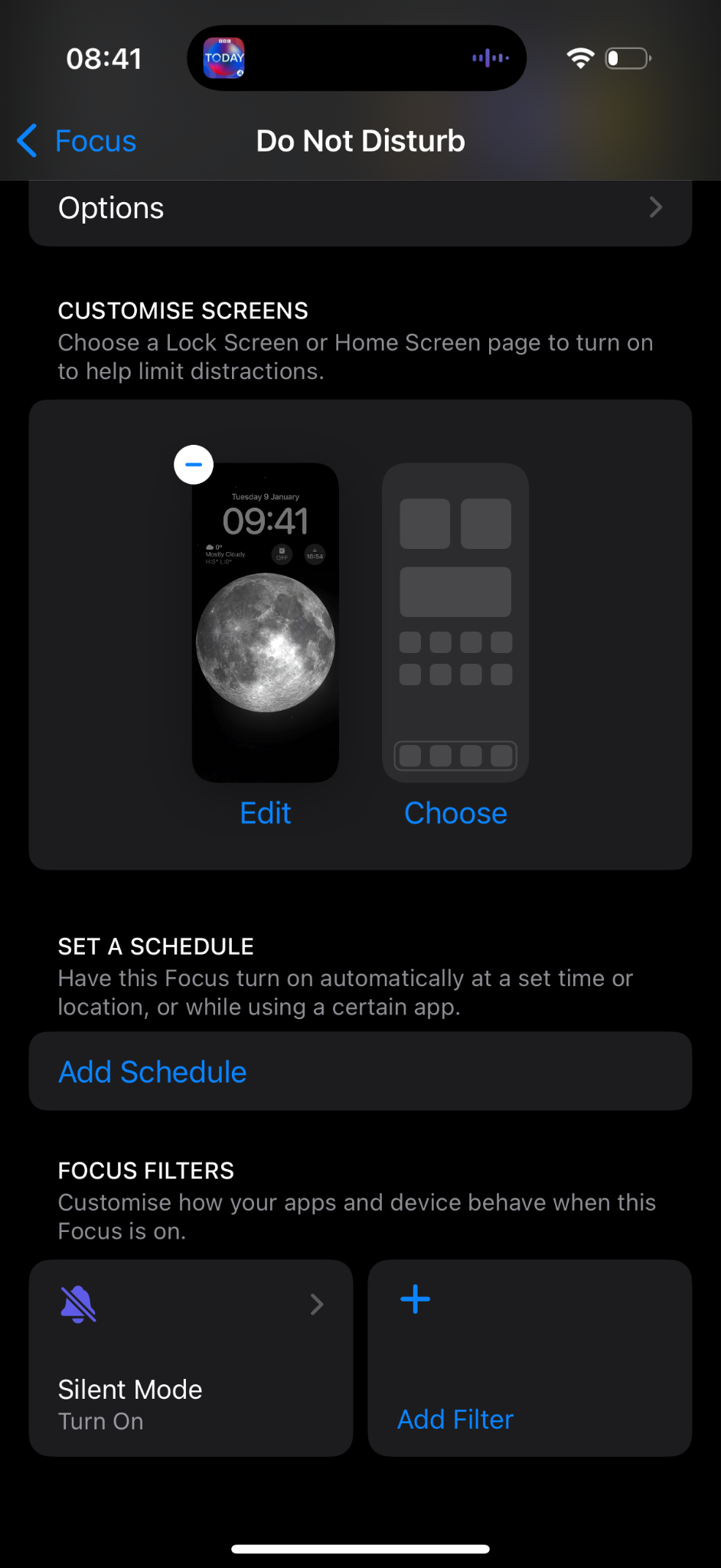
Do Not Disturb
Use Do Not Disturb when you want to minimize interruptions, for example during meetings or other periods requiring your full attention.
Recommended configuration
- Keep most notifications silenced.
- Allow only apps that must always be able to alert you, such as a home alarm or another critical service.
- Choose a dedicated wallpaper.
- Do not configure an iOS schedule.
- Set the Silent Mode filter to On.
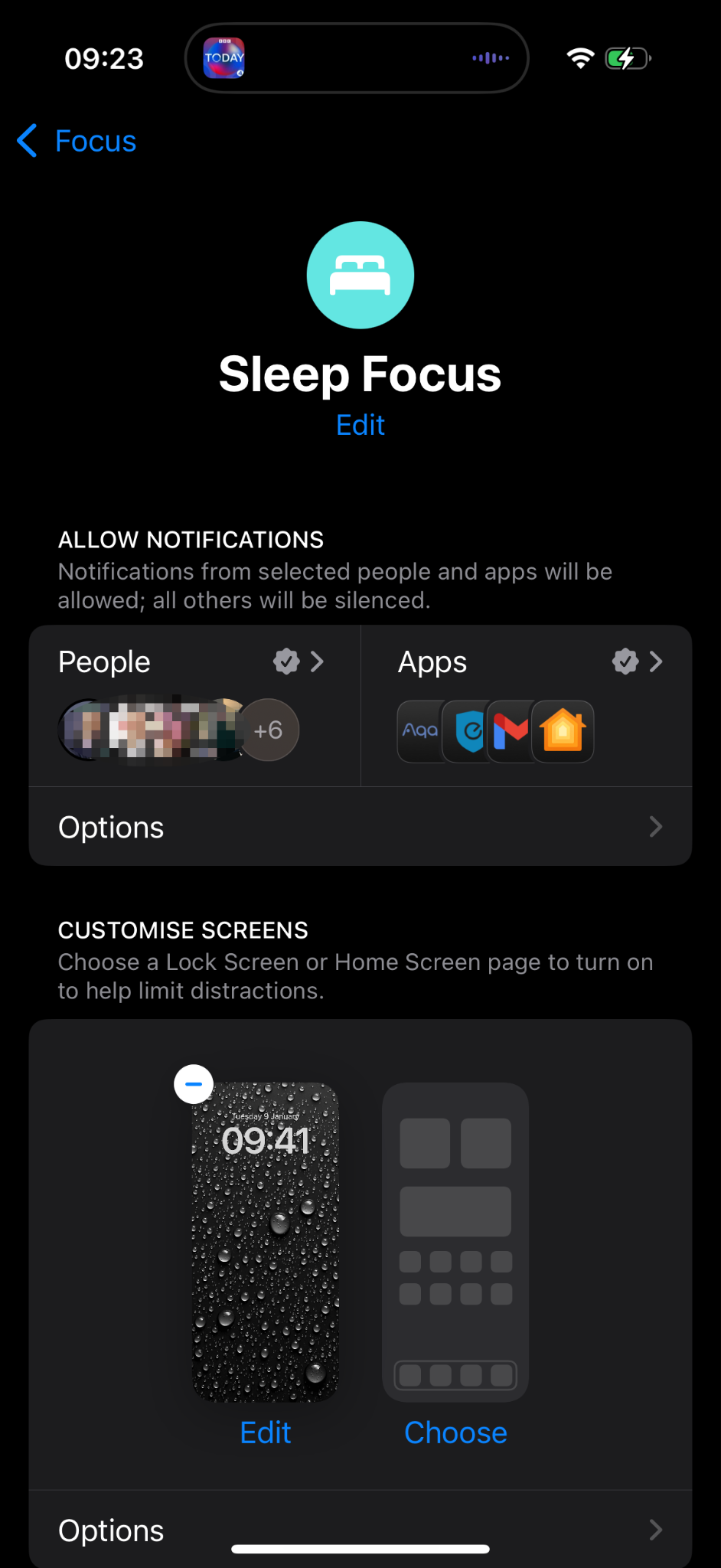
Sleep
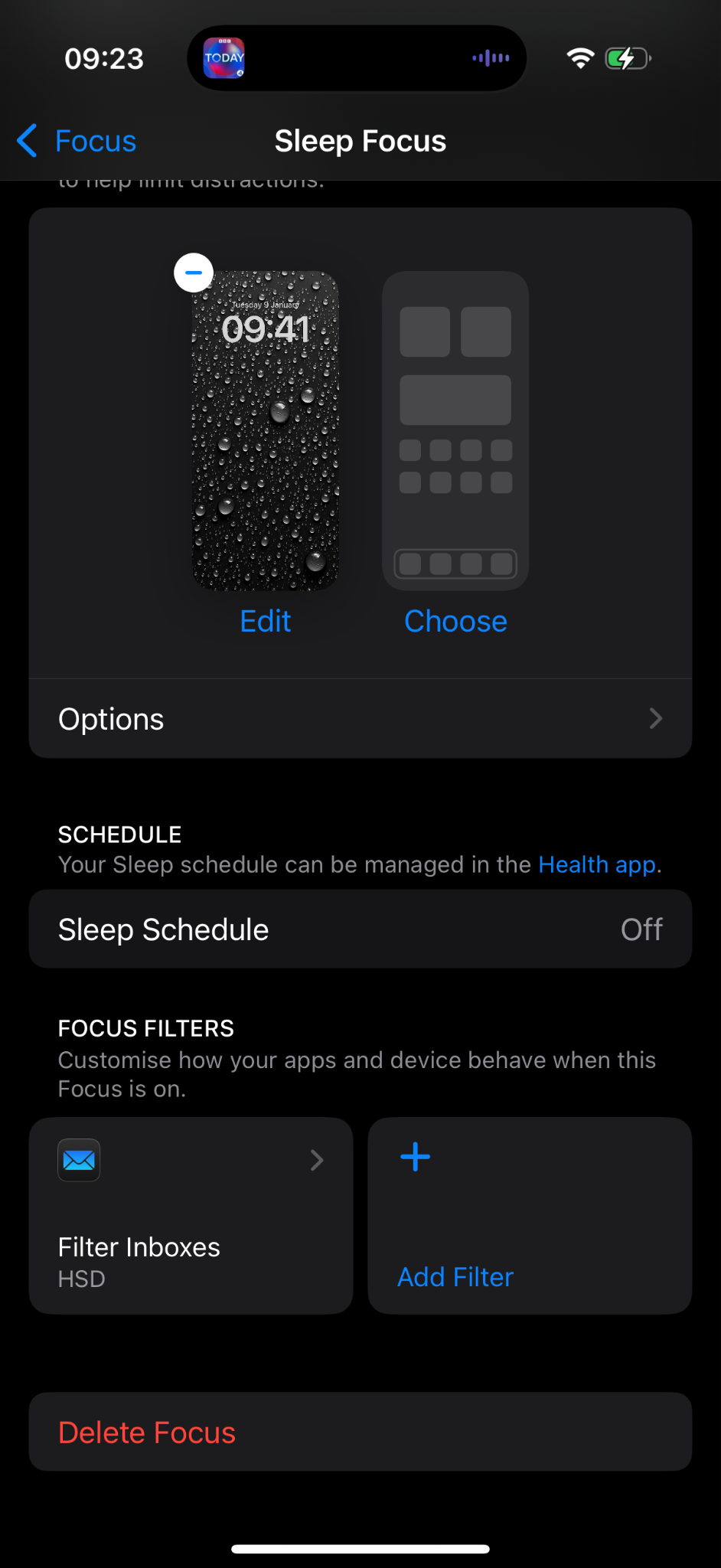
Sleep Focus provides a quieter environment at night and can use a dedicated Lock Screen and Home Screen.
Recommended configuration
- Configure the people and apps that are allowed to interrupt you during the night.
- Choose a dedicated Sleep wallpaper.
- Keep the configuration consistent with the schedule you defined in Smart Focus.
Ready for Smart Focus
Once your Focus modes are configured, Smart Focus can select the right one according to your working hours, calendar, meetings, holidays and other rules.
Next steps
Learn more about Smart Focus and how it makes your iPhone Focus modes smarter.
If you have not configured Smart Focus yet, follow the step-by-step Smart Focus setup guide to configure the app, install the Shortcut and create the required automation.